🐾 Guide: Member Profile and the TOP RETRIEVER Competition in the Retriever Klub CZ Database
1️⃣ What Is the Member Profile and What Is It Used For?
Each member of Retriever Klub CZ has their own member profile in the club database.
It contains:
- your personal details and membership status;
- an overview of your payments, including membership fees and entry fees for hunting trials organised by the club;
- your dogs registered with the club;
- an overview of events, including hunting trials organised by Retriever Klub CZ that you have entered or previously attended;
- other information, such as communications, documents and consents.
Information from member profiles is also used for club records and competitions, such as TOP RETRIEVER. We therefore recommend checking your member profile regularly and keeping the information up to date.
2️⃣ Where Can I Find My Member Profile?
- Go to: https://is.retriever-klub.cz
- Log in using your email address and password.
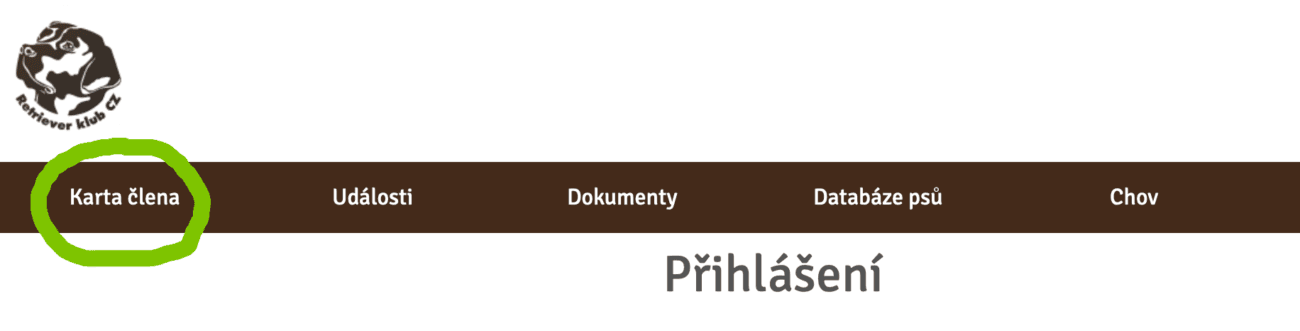
- Select Member Profile from the top menu.
After opening your Member Profile, you will see the following tabs:
- Basic Details
- Payments
- Dogs
- Events
- Other
3️⃣ Basic Details (Main Overview)
The Basic Details tab shows:
- your name;
- your membership number;
- your membership record, for example Member and the relevant date;
- whether your membership is currently valid, shown in green.
Buttons on the Page
- Edit – allows you to update your personal details, such as your contact information.
- View Membership Card – displays your digital membership card.
- Download Membership Card – downloads your membership card as a PDF.

4️⃣ Payments (Payment History)
The Payments tab contains your payment history.
Each entry shows:
- the type of payment, such as a membership fee or event entry fee;
- the amount;
- the date.
Each payment has an “i” information button on the right. Click it to view the payment details.
5️⃣ Dogs (Overview of Registered Dogs)
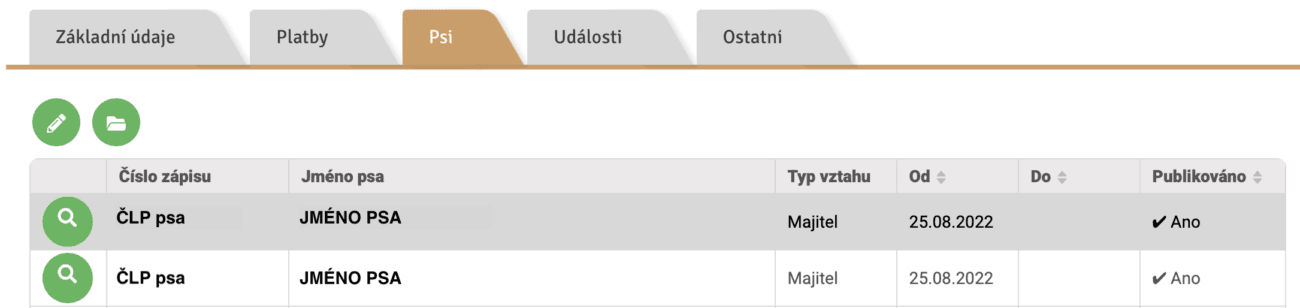
The Dogs tab contains a table listing the dogs assigned to your account in the club information system.
The table shows:
- Registration Number
- Dog’s Name
- Relationship Type, such as Owner
- From / To
- Published (Yes/No)
How to Open a Dog’s Details
Click the dog’s name or registration number. This will activate the pencil icon for adding records to the TOP RETRIEVER competition and the folder icon for documents.
6️⃣ Events (Event History)
The Events tab contains an overview of the events in your history.
Each event usually shows:
- the event name, which is a clickable link;
- the date of the event;
- the status, such as Paid.
If there are multiple events, page navigation may appear at the bottom.
7️⃣ Other (Communications, Documents, Consents, etc.)
The Other tab contains additional sections, depending on the information held in your account:
- Communications – an overview of messages and notifications, such as payment reminders and event information. The table shows the message type, subject, date sent, responsible person and status.
- Documents / Information / Relationships / Groups / Consents / Records – additional records and settings.
8️⃣ Documents (File List in the Other Tab)
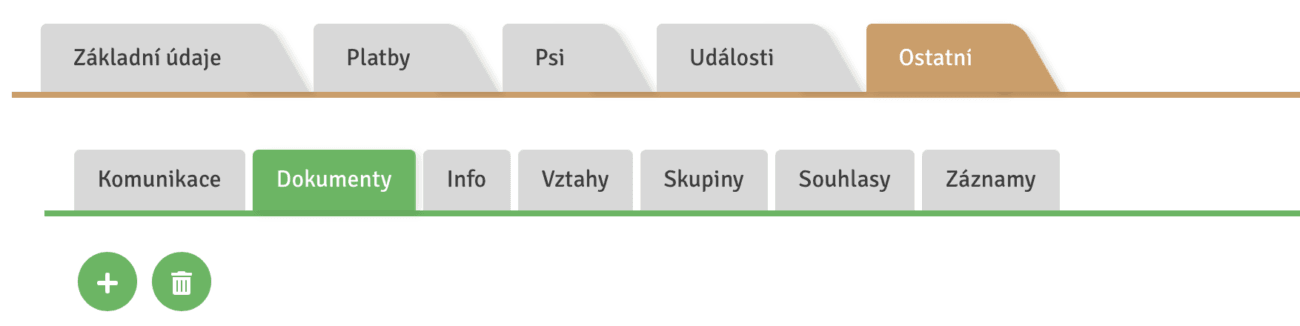
The Documents section displays a window containing a list of files.
The table usually shows:
- Name
- Date Created
- Date Modified
- Uploaded By
The following actions are available in the top left-hand corner:
- Upload File – the icon with the + symbol;
- Delete – the bin icon, which becomes active after you select a specific document.
9️⃣ TOP RETRIEVER (Selecting a Form)
In the dog’s profile, after clicking the dog’s name or registration number, the pencil icon will become active. Click the icon to open the Select Form window for the TOP RETRIEVER competition, where you can choose from the following categories:
- TOP RETRIEVER – Category 1 (Club Hunting Trials)
- TOP RETRIEVER – Category 2 (Working Tests)
- TOP RETRIEVER – Category 3 (Field Trials)
- TOP RETRIEVER – Category 4 (Dog Shows)
- TOP RETRIEVER – DUAL PURPOSE
Select the relevant category and follow the instructions in the form.
🏆 TOP RETRIEVER – Working with Documents
Supporting documents, such as certificates and results, must be uploaded to the system for the TOP RETRIEVER competition. To ensure that each document can be correctly assigned to the relevant dog and result, it is essential to name and upload it correctly.
🏷️ How to Name Files Correctly (MOST IMPORTANT)
The file name is essential, as it is used to locate and match the document.
Recommended format:
dog_name_event_type_year
Examples:
- dog_name_KPZ_2025
- dog_name_KV_Brno_2024
- dog_name_WT_Tabor_2025
You can also include the result:
- dog_name_KPZ_1st_prize_2025
👉 A clear file name makes the document easier to find:
- for you;
- for the club and the IT team if the document needs to be located or corrected.
✅ Recommended Procedure (Most Reliable)
The most reliable way to work with documents is to:
- upload the document to the dog’s profile first;
- then select it from the list in the TOP RETRIEVER form.
This helps prevent problems caused by an incomplete upload.
📂 How to Upload a Document to a Dog’s Profile
- Open Member Profile → Dogs.
- Click your dog’s name or registration number.
- Open Documents using the folder icon.
- Click Upload File.
- Select the file from your device.
- Wait until the file appears in the list of documents.
⚠️ Before continuing, make sure the file is visible in the documents table.
📑 How to Select a Document in TOP RETRIEVER
When entering a result in the competition, complete the venue, date and result of the trial or dog show in the form. You will then have the option to upload or select a document.
If you uploaded the document in advance:
- simply select it by its file name;
- there is no need to upload it again.
✔️ Summary
To ensure that the document is assigned correctly:
- give the file a clear and descriptive name;
- upload it to the dog’s profile first;
- wait until the upload is complete;
- then simply select it in the TOP RETRIEVER form.
We hope this guide helps you find your way around the Member Profile and makes it easier to use the club database and enter results in the TOP RETRIEVER competition.
Should you encounter any problems or be unsure how to proceed, please do not hesitate to contact us.
Thank you for helping us keep the information in the system clear and up to date.
🐾 Your Retriever Klub CZ 🐾